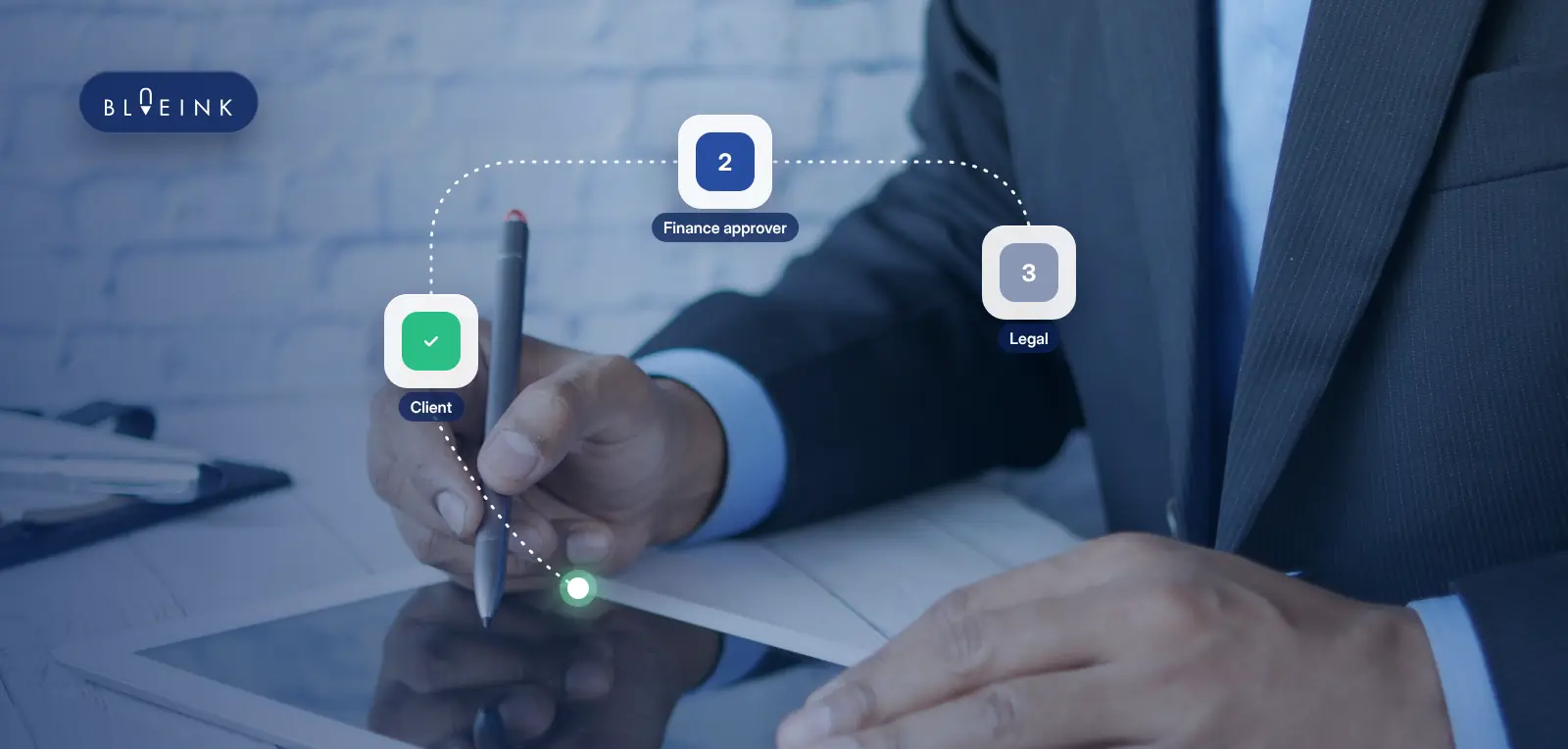

How to Set the Right Signing Order for Multi-Party Documents

Signing order controls the sequence in which multiple people receive and sign a document. With sequential signing, the first signer completes their part before the document moves to the next person. This is useful when a contract needs an approval, acceptance, countersignature, witness, or another signature in a specific order.
The right sequence depends on the document and your internal process. A vendor may need to accept an agreement before an authorized company representative countersigns it. An employment document may need a company signature before it goes to the candidate. Other workflows may require a witness after a particular signer completes their part.
Instead of manually sending separate versions from person to person, signing order lets that sequence happen within the same eSignature workflow.
What Is Signing Order?
Signing order is a routing rule that determines who signs first, second, third, and so on when an envelope contains multiple signers.
In a sequential signing workflow, the document starts with the first designated signer. After that person completes their required actions, it moves to the next signer in the sequence. The process continues until everyone in the signing order has completed their part.
For example:
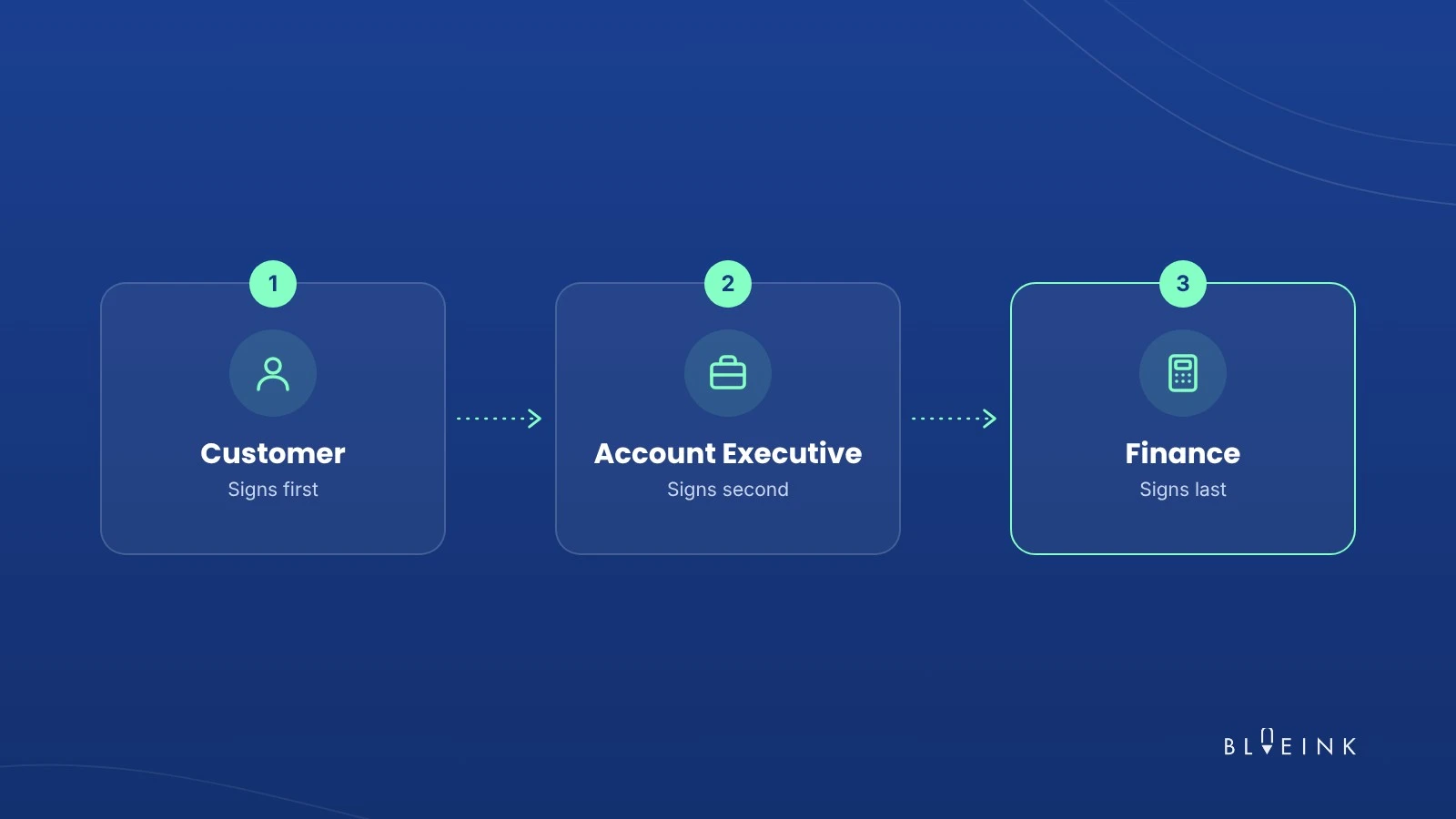
Customer → Account Executive → Finance
The customer signs first. Once that step is complete, the agreement moves to the account executive. Finance receives it after the account executive finishes.
The advantage is control. Rather than asking each person to wait for a manual handoff, the routing rules determine when their turn begins.
Signing order is one of the document-routing capabilities included in Blueink's broader eSignature feature set.
Why Signing Order Matters
The sequence may look like a small setup choice, but it can determine whether a multi-party document follows the workflow your team intended.
Approvals Before External Signers
Some organizations do not want an agreement sent outside the business until an authorized internal signer has completed their part.
For example, a procurement team may require an internal representative to sign an approved vendor agreement before it goes to the supplier.
A sequential workflow can enforce that structure:
Internal authorized signer → Vendor
Signing order should not be treated as a replacement for a separate legal, financial, or operational approval process. If a contract needs internal review before anyone is authorized to sign it, complete that review first and use signing order for the actual signatures that need to happen in sequence.
Countersignatures
A countersignature is a signature added by another party after the first party has signed.
This is common when a business wants the external party to accept an agreement before an authorized company representative executes it.
For example:
Client → Company representative
or:
Vendor → Procurement representative
In practice, this means the customer or vendor can sign first, and the same agreement can then move automatically to the authorized company representative for the countersignature. This avoids relying on someone to notice the first signature and manually send the document to the next person.
This can be especially useful for contract signing workflows where agreements regularly require execution by both sides.
Clean Audit Records
A defined signing sequence also makes the execution process easier to follow later.
If a document needs three signatures in a particular order, the completed record should make it possible to review when each person acted.
Blueink records signing activity throughout the transaction, while its Certificate of Evidence provides a detailed record associated with a completed envelope.
This doesn't decide whether a specific order is legally required. It gives teams a clearer record of how the configured signing process took place.
How to Choose the Right Signing Order
There is no universal rule that says the customer, vendor, employee, manager, or company representative must always sign first. The correct order comes from the workflow behind the document.
Before setting the sequence, ask:
- Does anyone need to sign before the document can be presented to another party?
- Is one person's signature intended to confirm or countersign another person's acceptance?
- Does an internal policy require a particular authorized signer?
- Does a witness need to participate in the execution process?
- Will the same sequence be reused for future documents?
The goal is to model the actual process rather than choosing an order simply because one person's name appears first on the document.
Who Should Sign First?
Start with the person whose completed signature is required before the next person should act.
For a customer agreement, that might be the customer if the company only countersigns accepted contracts.
For another organization, the authorized company representative may sign first because the agreement must be formally issued before the customer signs. The same logic applies to HR, procurement, sales, and operational documents.
Instead of asking, "Who is internal?" ask: Whose completed action should trigger the next signature?
That usually gives you the correct first signer.
Internal vs. External Signers
Internal and external status can help you think through the workflow, but it should not be the only rule.
An internal-first sequence may make sense when:
- the business must execute the document before presenting it externally
- a manager or authorized representative must sign before the other party
- the signed internal version represents the formal offer or agreement being presented
An external-first sequence may make sense when:
- the business only wants to countersign after the other party accepts
- a vendor, customer, or contractor needs to agree to the terms first
- an internal signer should act only after receiving the external party's completed signature
For documents with more than two signers, continue the same logic for each step.
If your goal is figuring out how to get multiple signatures on one document, first identify every required signer, then order them based on which completed signature should trigger the next.
Common Signing Order Examples
The appropriate sequence depends on your policies and the document itself, but these examples show common ways sequential signing can be structured.
These are workflow examples, not rules for how a particular contract must be executed.
Vendor Agreements
Vendor documents often involve procurement, an authorized company signer, and the vendor itself.
If your process requires supplier acceptance first, the vendor can sign before the agreement moves to your internal countersigner.
If your process requires an authorized internal signature before the vendor receives the agreement, reverse the sequence.
Blueink's vendor agreement workflows can support recurring supplier documents that need structured signing and tracking.
Offer Letters
Offer letters can use either company-first or candidate-first signing depending on the employer's process.
A company-first workflow may send the candidate a document that has already been executed internally.
A candidate-first workflow allows the candidate to accept the offer before it moves to the company representative for a countersignature.
What matters is consistency with the organization's approved hiring process.
Countersigned Sales Contracts
Sales agreements are a straightforward use case for sequential signing when the business wants the customer to sign before an internal representative countersigns.
A typical sequence might be:
Customer → Sales executive
For contracts requiring another authorized signer, it could be:
Customer → Sales executive → Finance or executive signer
Signing order keeps those handoffs in the same envelope instead of requiring the sales team to manually resend the agreement after each signature.
How to Set Signing Order in Blueink
Blueink lets you configure sequential signing for an individual envelope, save it in an Envelope Template, or make it the account default.
For a Single Envelope
When preparing a document with multiple signers:
- Start a new envelope by choosing a template or uploading your document.
- Add the people who need to sign.
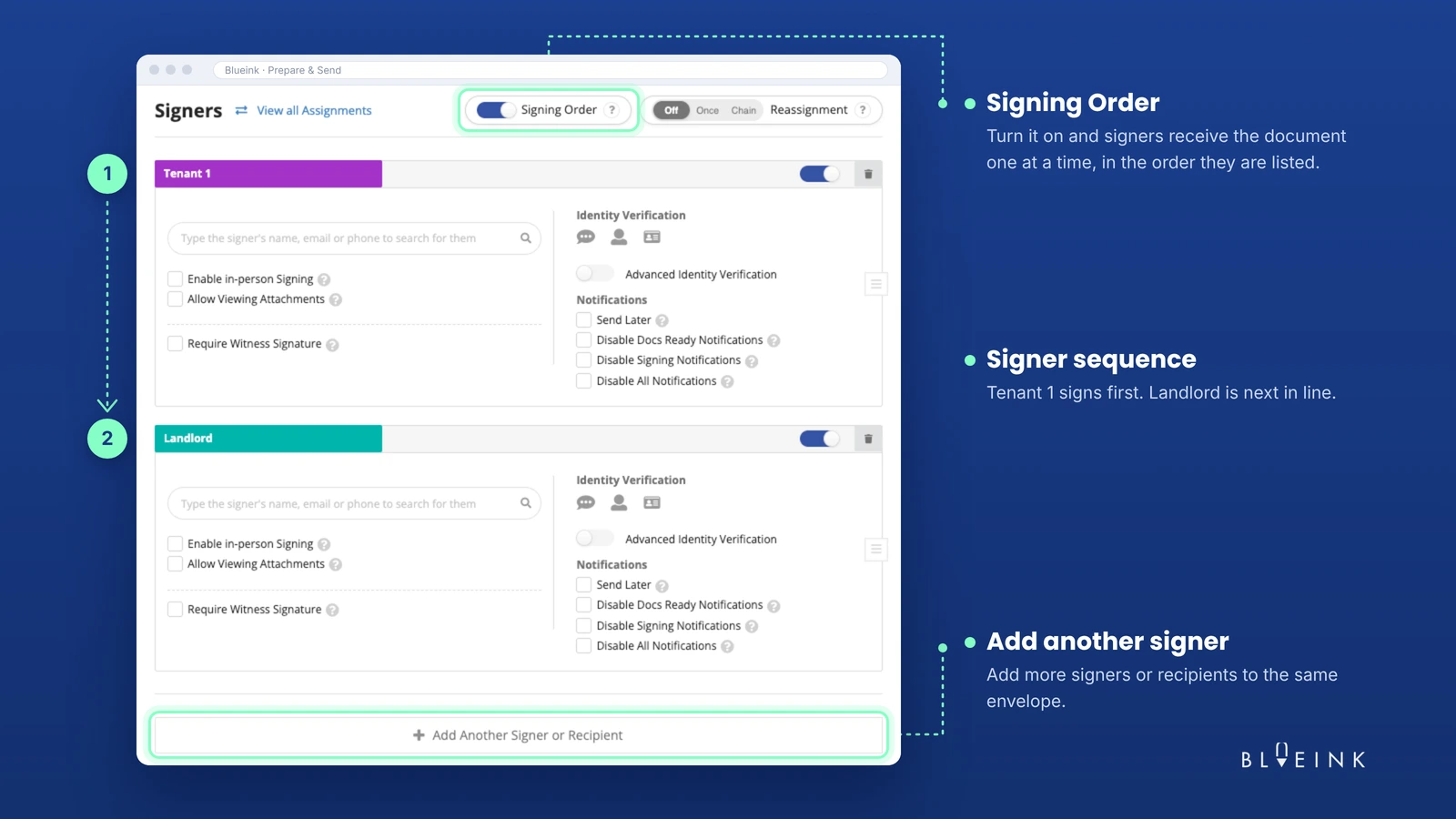
- In the signer information section, locate Set Signing Order. The option appears once at least two signers have been added.
- Turn on Set Signing Order.
- A number will appear for each signer. Use the arrows or enter a number manually to set the sequence.
- Continue preparing the envelope by adding fields, reviewing the setup, and sending it.
If the client should sign first and your company representative should countersign second, assign the client 1 and the company representative 2.
For the current interface and step-by-step setup, see how to set a signing order in Blueink.
In a Reusable Template
If you repeatedly use the same signer sequence, save the routing behavior in an Envelope Template instead of configuring it again for every transaction.
To enable it:
- Create a new Envelope Template or edit an existing one.
- Open Delivery Options.
- Turn on Sign In Order.
The template can then preserve that sequential workflow for future envelopes created from it. This is especially useful for repeat agreements where the people may change but the roles and sequence stay the same, such as:
Client → Account Manager
Vendor → Procurement
Employee → HR
The actual people can be filled in for each transaction while the routing structure remains consistent.
As an Account Default
If most of your organization's multi-signer documents should follow a sequential signing order, you can make it the account default.
- Select your profile icon.
- Open Settings.
- Go to Envelope Defaults.
- Open the Basics tab.
- Turn on Sign In Order.
The setting establishes the preferred default for future envelope workflows. Individual documents should still be reviewed before sending to make sure the sequence is appropriate.
Adding Witnesses and Reminders
Some multi-party documents need more than the primary parties' signatures.
Witness Signatures
If a document requires a witness, Blueink supports a dedicated witness role as part of the eSignature workflow.
The witness can be incorporated into the document process rather than coordinated through a separate paper or email workflow.
When a witness is required, Blueink automatically routes the document to the witness after the signer they’re witnessing completes their part. That keeps the witness step in the right place in the sequence without anyone having to forward the document manually.
For documents where witnessing is required, review how Witness Signatures in Blueink work before preparing the envelope.
Whether a witness is legally required, who may act as one, and how witnessing must occur depend on the document and applicable law.
Reminders
Signing order controls when each signer participates. Reminders address a different problem: what happens when the person whose turn it is has not completed the document.
That becomes particularly important in a sequential workflow because one outstanding signature can prevent the document from reaching the next signer.
Teams can configure follow-up around outstanding documents rather than manually checking every envelope. See how to send reminders to signers using Blueink for the available reminder workflow.
The sequence itself should still be chosen based on the document process, not on which signer you expect to respond fastest.
Tracking Progress With the Audit Trail and Certificate of Evidence
Once a sequential envelope has been sent, the sender needs visibility into where it is in the process.
Blueink's Real-Time Dashboard helps teams monitor document and signer status while an envelope is in progress. This makes it easier to determine whether a document is still waiting for the first signer, has moved to a later signer, or has been completed.
After completion, the Certificate of Evidence provides a detailed event record associated with the signing transaction, including signer, authentication, document, signature, and other activity information.
This becomes particularly useful with multiple signers because the final record is not simply "document completed." It provides evidence tied to the individual actions that led to completion.
For teams managing contracts, vendor agreements, HR documents, or other recurring multi-party workflows, that traceability can make the execution process easier to review without maintaining a separate manual record of who signed when.
Make Signing Order Part of the Workflow
Signing order works best when it reflects a process your team has already decided on.
Identify every person who needs to sign. Determine whose completed signature should trigger the next step. Decide whether later signers are countersigning, witnessing, or completing another required action. Then build that sequence into the envelope.
For workflows you send repeatedly, save the order in a reusable template or set sequential signing as an account default when appropriate.
That way, the routing does not depend on someone remembering to manually forward a completed document to the next person every time.
Explore all Blueink features to see how signing order works alongside templates, reminders, tracking, authentication, and other features.
Want to try it with your own multi-signer documents? Start your free 14-day Blueink trial!
Frequently Asked Questions
What Is Signing Order in an Electronic Signature Workflow?
Signing order determines the sequence in which multiple signers receive and complete an eSignature document.
With sequential signing, signer 1 completes their required actions before the workflow moves to signer 2, followed by signer 3 and any remaining signers. This is useful for countersignatures and other documents where signatures need to happen in a defined sequence.
Who Should Sign a Contract First?
There is no universal rule for who must sign first. The right sequence depends on the contract and the organization's process.
If the company only countersigns after a customer or vendor accepts, the external party may sign first. If an authorized company signature is required before the document is issued externally, the internal signer may go first.
What Is a Countersignature?
A countersignature is a signature added by another party after the first person has signed.
For example, a customer may sign an agreement first and an authorized company representative may countersign it afterward. A signing order can automate that sequence so the contract moves to the countersigner after the first signature is complete.
A countersignature is different from simply reviewing or approving a document internally. The countersigner is adding their own signature to the agreement after the first party has signed.
Can I Save a Signing Order in a Template?
Yes. In Blueink, create or edit an Envelope Template, open Delivery Options, and turn on Sign In Order.
This is useful for recurring workflows where the signer roles and sequence stay consistent even if the actual people change from one transaction to another.
How Do I Know Where a Document Is in the Signing Order?
Blueink's Real-Time Dashboard provides visibility into signer and document status so the sender can see where an envelope currently stands.
After the envelope is completed, the Certificate of Evidence provides an additional record of the signing activity.
Disclaimer
Blueink is not a law firm and does not provide legal advice. This page is for informational purposes only and should not be considered a substitute for professional legal counsel. If you have questions about the validity or enforceability of eSignatures or digital signatures, we recommend consulting with a licensed attorney. Use of Blueink’s services is subject to our Terms of Use and Privacy Policy.

Recent post
October 16, 2026
October 12, 2026
October 6, 2026
October 1, 2026
September 22, 2026
.png)