
Universal Search: Find Envelopes Fast, from Anywhere in Blueink

Summary
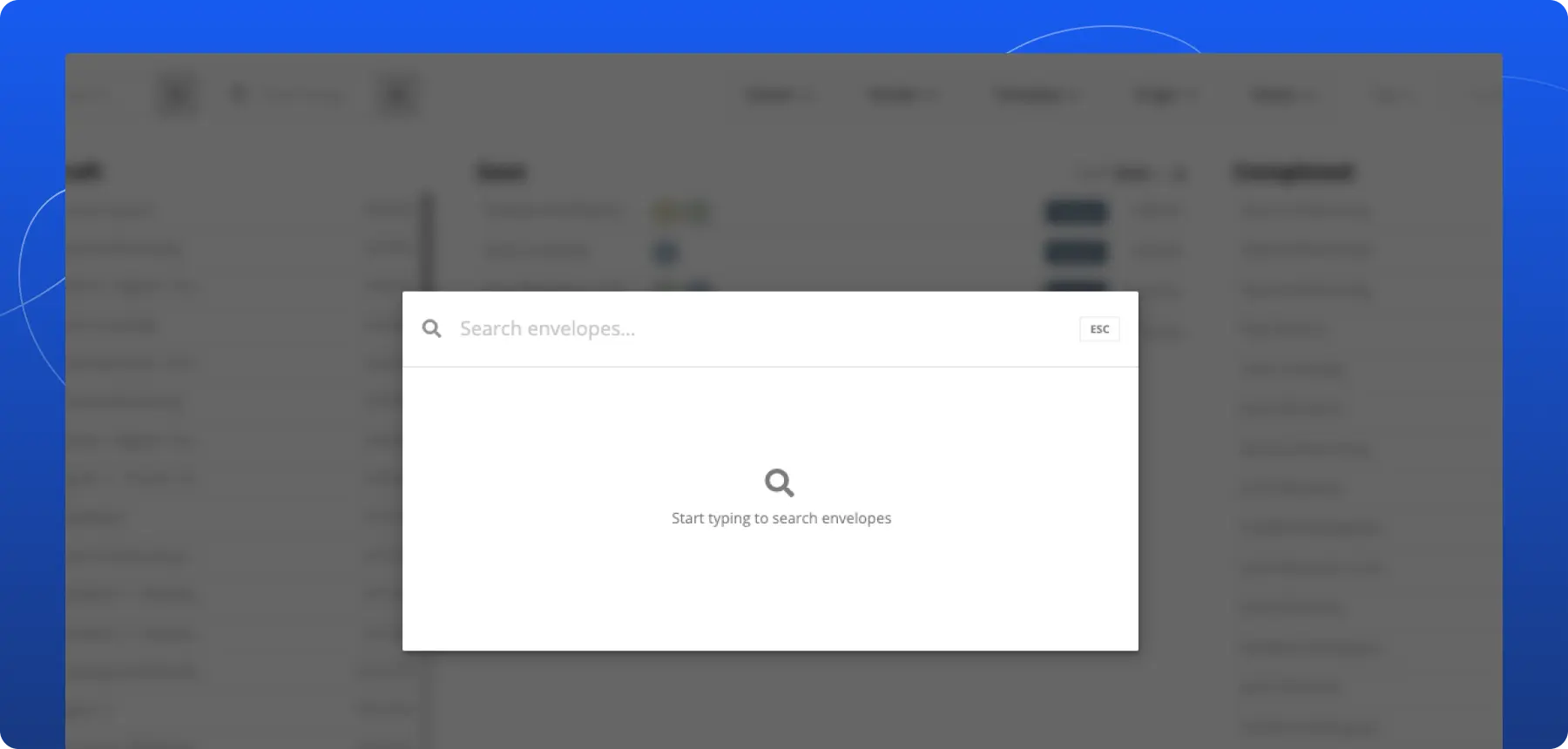
Blueink’s new Universal Search feature makes it faster to find envelopes and related information from anywhere in the platform. With a single search bar available across Blueink, users can quickly locate envelopes, signer details, and other relevant records without jumping between pages or applying multiple filters.
The Problem
Finding a specific envelope or signer detail can be time-consuming, especially when you’re managing a high volume of documents. In many cases, users had to browse lists, switch screens, or apply filters to track down the right record. That process added extra steps and slowed down day-to-day work.
The Update
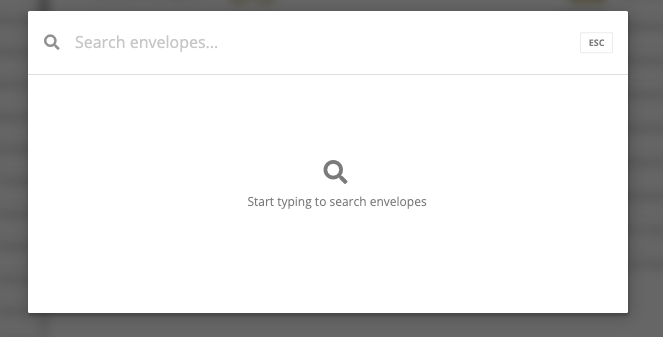
Universal Search gives you one place to search across key envelope data points from any screen in Blueink. Instead of navigating through different views, you can enter a keyword, choose the matching result, and go directly to the envelope details page.
How It Works
Using Universal Search is simple:
- Click the search bar at the top right of your screen
- Or press Ctrl + K to open Universal Search
- Enter a keyword related to the envelope or signer
- Select the result you want from the dropdown list
Once selected, Blueink takes you directly to the relevant envelope details page.
You can search using details such as:
- Envelope ID
- Envelope Label
- Signer name, phone or email
Universal Search also makes it easier to revisit recent activity by showing recent searches, so you can quickly return to records you’ve already viewed.
Good to Know
Universal Search is now available in your Blueink account and can be accessed from the search bar at the top of the screen or with the Ctrl + K keyboard shortcut.
For step-by-step instructions, visit the Blueink Help Center.
Not using Blueink yet? Schedule a demo to see how Blueink can simplify your document workflows.